
|
HowTo /
NavigatingWithinAnArticleNavigation using the Table of Contents 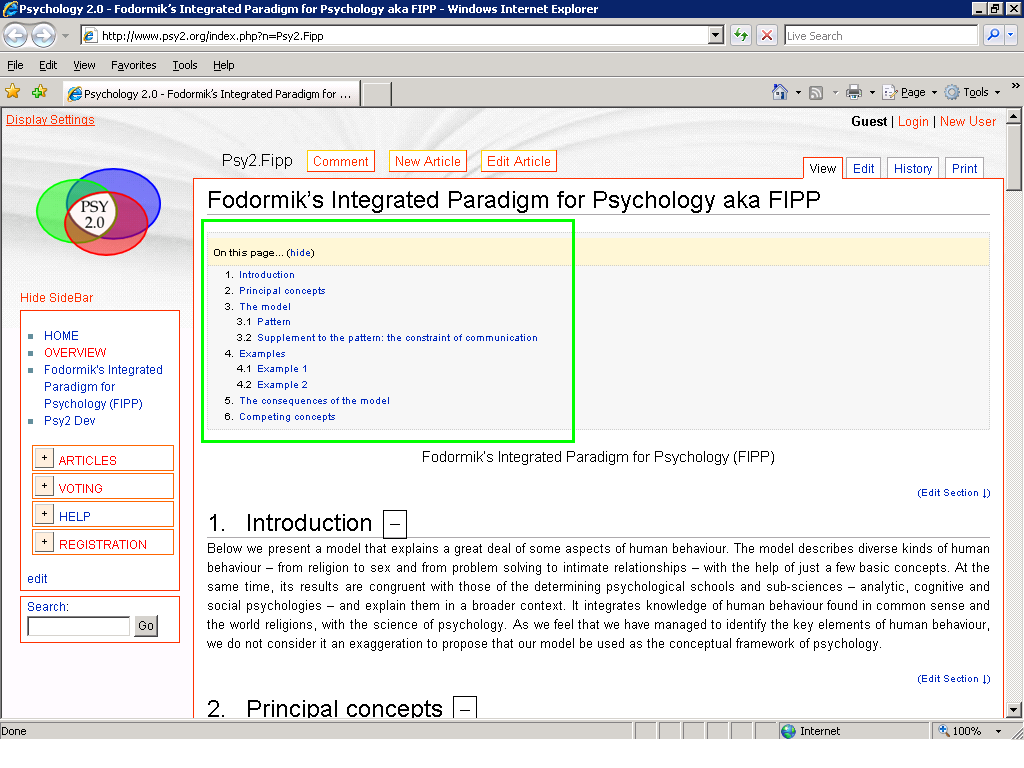
Changing the Display Settings 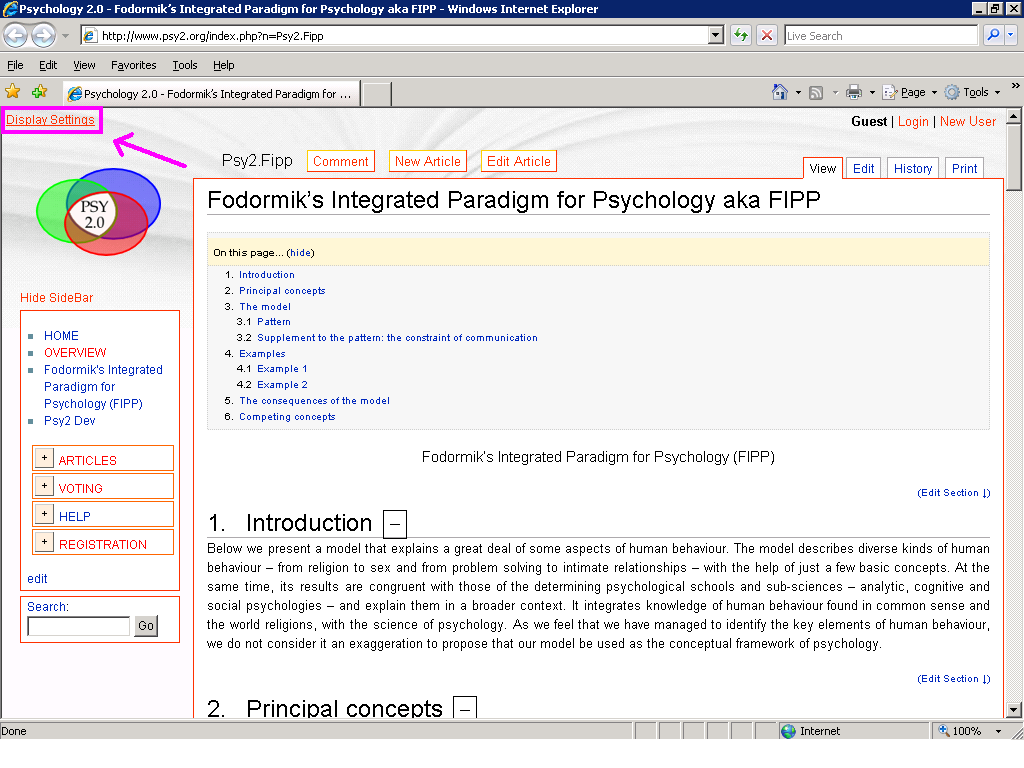 In the top left corner you find Display Settings, a control panel that allows you to set how much details you would like to see from an article. There are two main options:
If you choose 'Text', you can make the not-core parts of the text hide. This option is recommended to those who are familiar reading scientific publications. Some are disturbed by the too many links and multimedia that you find on the internet. You can make them hide. Note that the links pointing to other psy2.org articles will not disappear, just the external links. More space for reading by hiding the SideBar 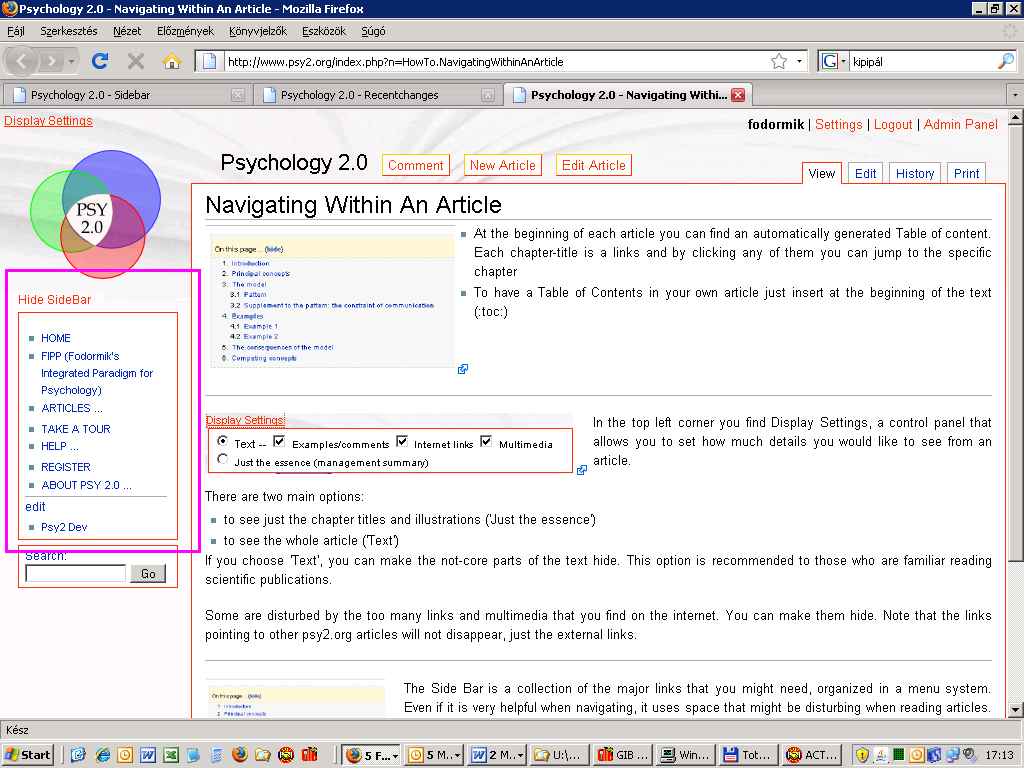 The Side Bar is a collection of the major links that you might need, organized in a menu system. Even if it is very helpful when navigating, it uses space that might be disturbing when reading articles. Hide it by clicking on Hide SideBar on the top of it.
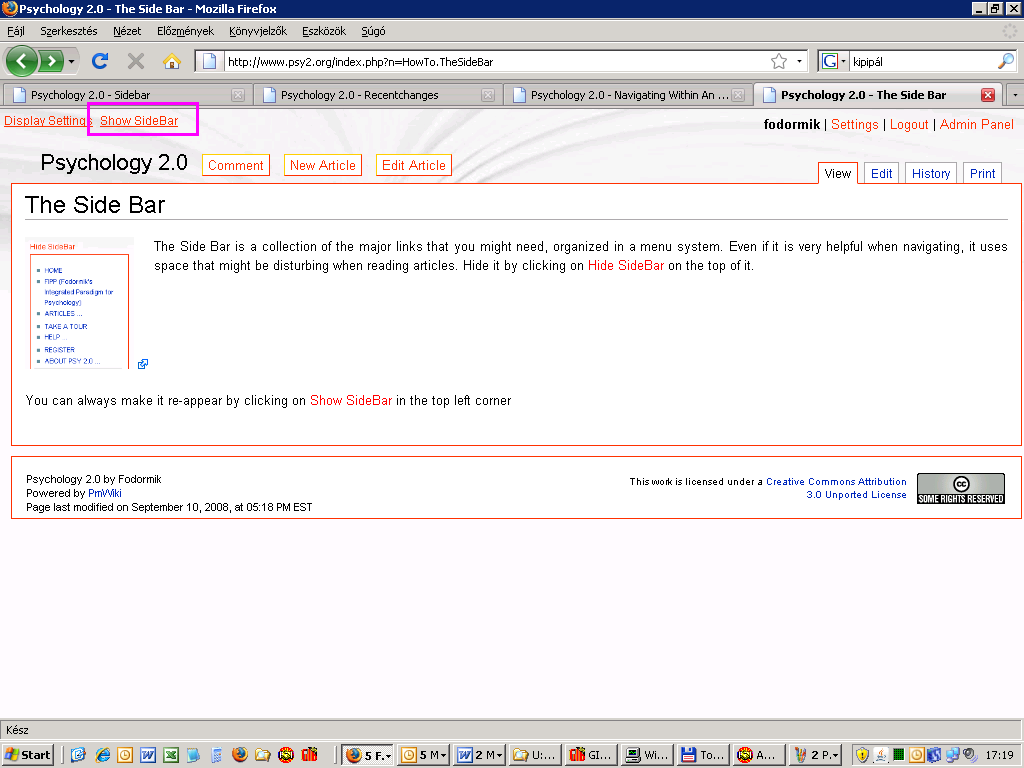 You can always make it re-appear by clicking on Show SideBar in the top left corner You can always make it re-appear by clicking on Show SideBar in the top left corner |